
Audio to Subs
Turn speech from audio or video files into subtitles you can review and save.
Overview
Audio to Subs turns speech from audio or video files into subtitle files. For files with more than one audio track, choose the one you want before starting.
Works with other tools
Some outputs can be opened again in another MediaFlow workspace.
Demo video
Watch a short product demo for this tool before following the detailed steps.
Formats
Use this section to confirm what you can bring in and what you can save.
Import audio files directly, or video files that contain speech you want to subtitle.
Export subtitles in common subtitle formats, or save a detailed transcript file when needed.
How to use
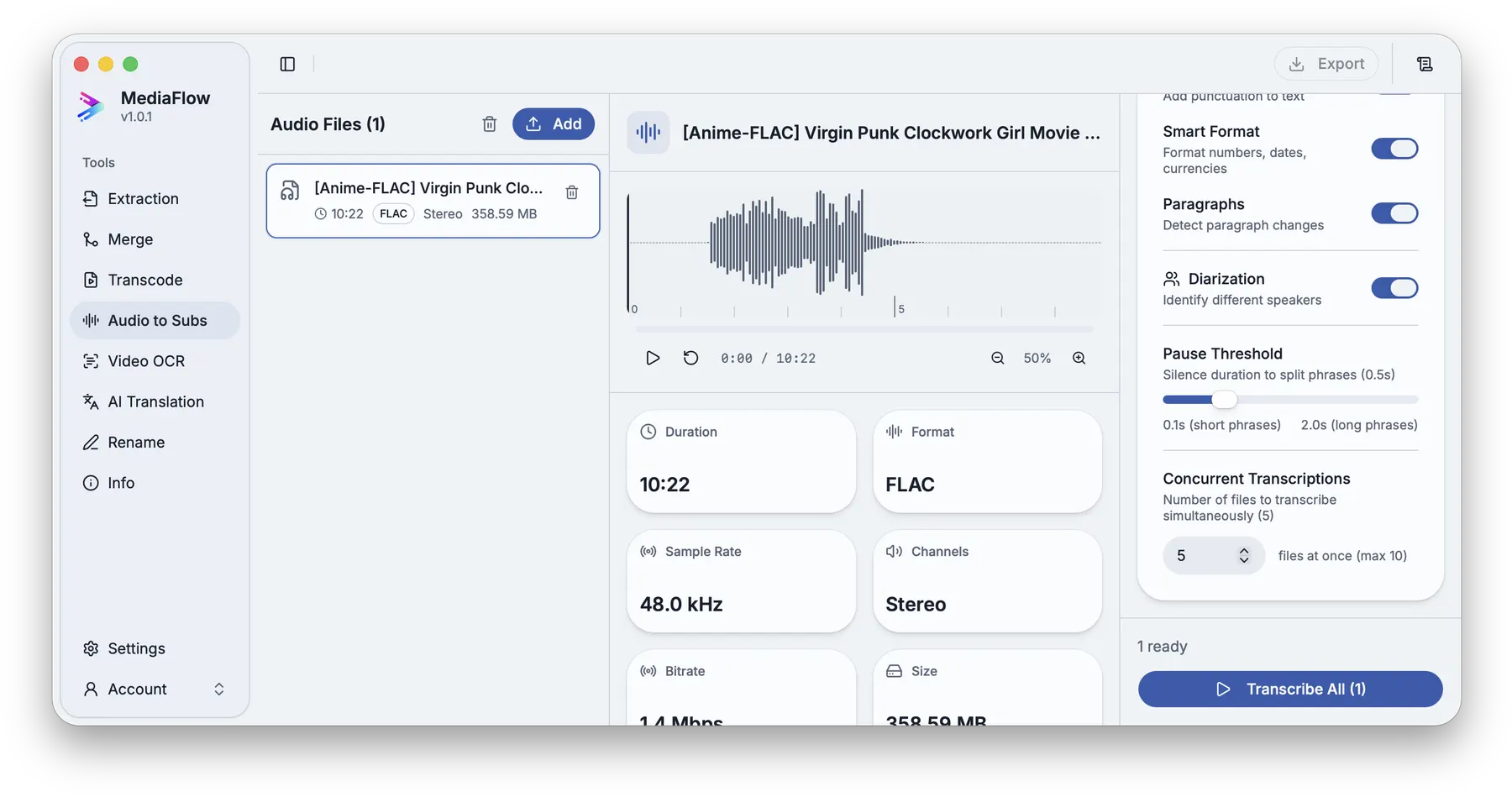
Follow the annotated captures to find the right controls inside the desktop app.
Drop supported files into the workspace, browse from disk, or import audio saved from Track Extraction.
For files with several audio tracks, choose the track you want to turn into subtitles.
Choose the output format and transcription settings before running the job.
Start the run, follow progress, then review and export the generated subtitle version.
Screenshots
Use these annotated captures to recognize the workspace and key areas of the tool.