
MediaFlow for desktop
All your media tools, together.
Convert, extract, merge, subtitle, translate, rename, and inspect files without juggling apps.
Everything together
The media tools you keep jumping between, in one app.
Handle the job in front of you without hunting for another utility. Convert a file, pull out audio, create subtitles, recover bitmap subtitle text, translate, rename a batch, or inspect details from the same desktop app.
Track Extraction
Pull audio, subtitle, or video tracks out of media files and save them separately.
Select tracks per file or across a whole batch.Track Merge
Build episode or season batches with subtitles and audio matched to the right videos.
AI Match suggests links while keeping existing attachments untouched.Transcode
Convert video, audio, subtitles, and metadata for delivery, archive, or editing.
AI Assist recommends settings for speed, quality, archive, or file size.Audio to Subs
Turn speech from audio or video files into subtitle files you can review and export.
Create SRT, VTT, or text versions from speech.Video OCR
Recover burned-in subtitles by reading text directly from video frames.
Set an OCR region, review versions, then export subtitles.Subtitle OCR
Turn bitmap subtitle sources into editable subtitle files with cue-by-cue review.
Import PGS, SUP, or IDX/SUB, clean OCR text, then export ASS, SRT, or VTT.AI Translation
Translate subtitle files side by side, edit the result, and export final subtitles.
Keep timing and formatting while reviewing translated lines.Batch Rename
Rename or copy large batches with rule previews before anything changes on disk.
Preview every filename and detect conflicts before applying.File Information
Inspect duration, tracks, codecs, languages, size, and metadata without modifying files.
Read containers, tracks, codecs, bitrate, language, and metadata.Unified workflow
Choose the right tool. MediaFlow keeps files and outputs in one place.
Import your files, run conversion, extraction, subtitle OCR, transcription, or translation, then reuse compatible results in the next tool without switching apps.
Start from what you need
Choose the media job in front of you instead of opening another converter, subtitle tool, or rename utility.
Bring files in once
Add one file or a full batch, then reuse compatible outputs inside MediaFlow when the job continues.
See the result first
Check filenames, settings, subtitles, translations, OCR text, and extracted tracks before anything is written.
Save clean outputs
Export the final file, subtitle, track, renamed batch, or file details when it is ready.
AI assistance
AI handles the parts that slow you down.
MediaFlow keeps you in control while AI helps with repetitive decisions: matching files, choosing settings, reading audio, cleaning OCR text, and translating subtitles.
- Match loose subtitles or audio tracks to the right videos.
- Get sensible conversion settings from your goal and source file.
- Turn speech into editable subtitles with version history.
- Translate subtitles while keeping timing and formatting intact.
Why it works
Everything stays reviewable.
MediaFlow keeps files, versions, progress, and exports visible, so you can move fast without guessing what changed.
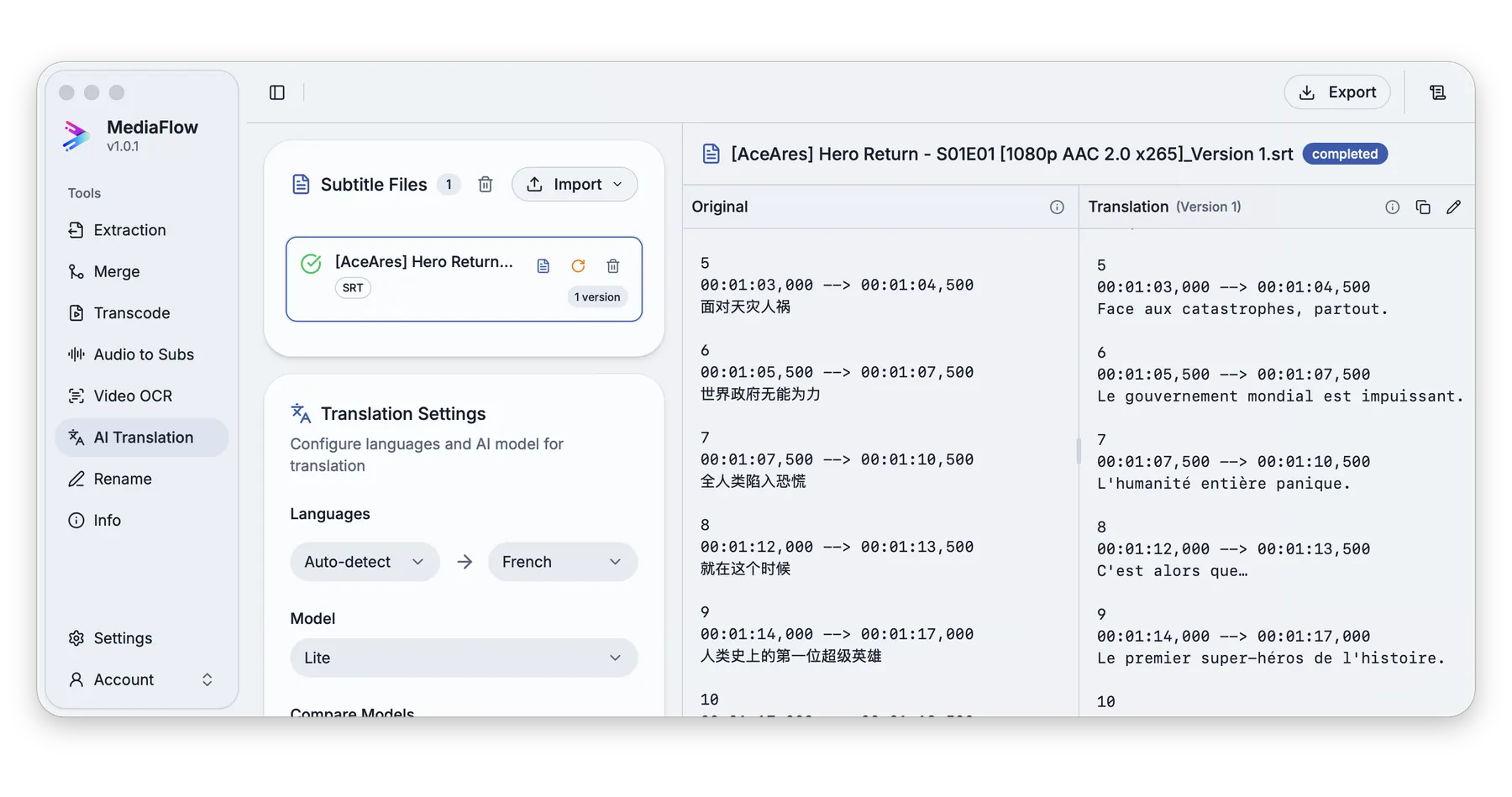
Review translated subtitles
Compare the original and translated lines, check progress, then export the version you want to keep.
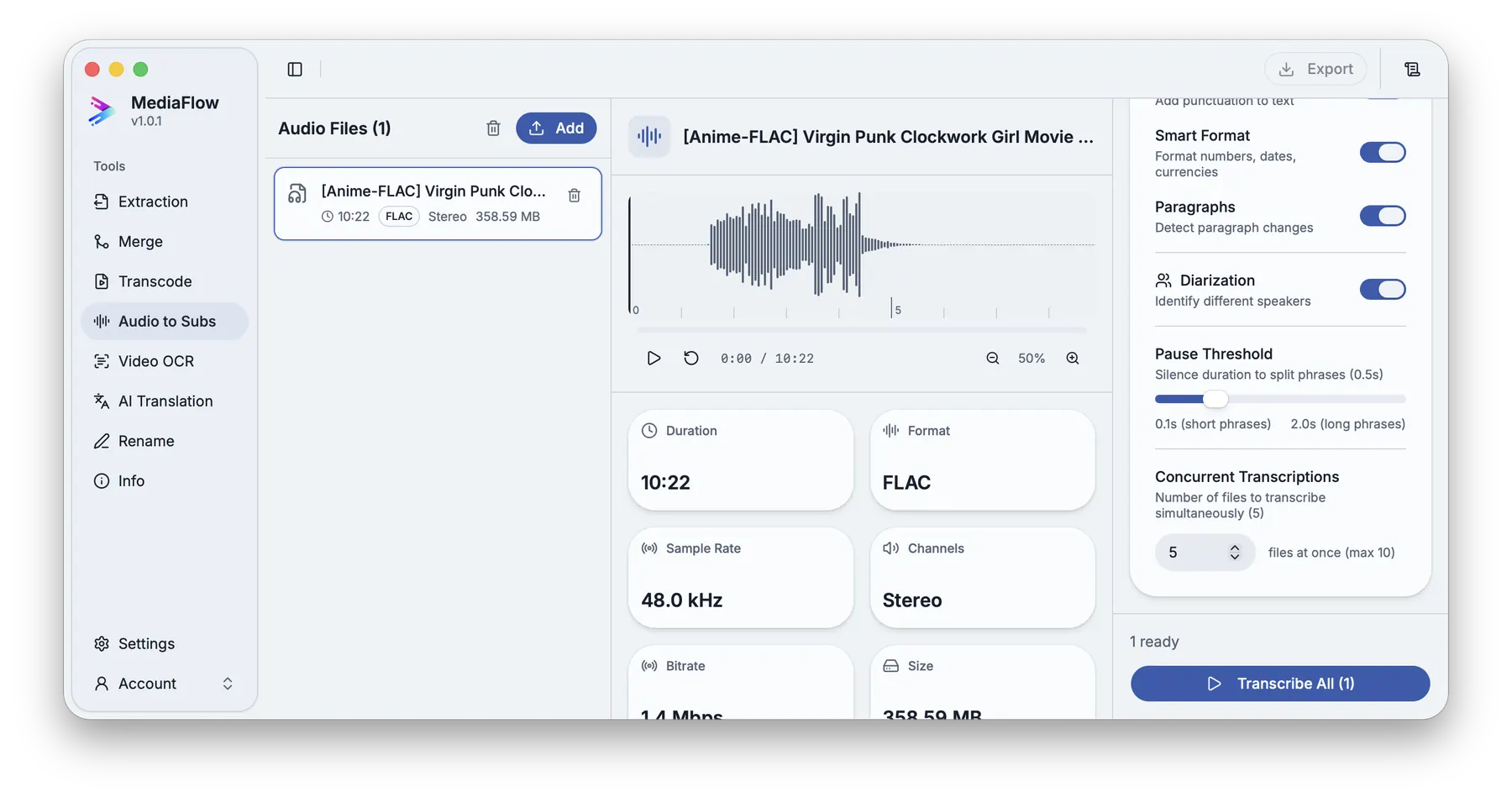
Generate subtitles from audio
Pick the source track, create a transcription, keep multiple versions, and export SRT, VTT, or text.
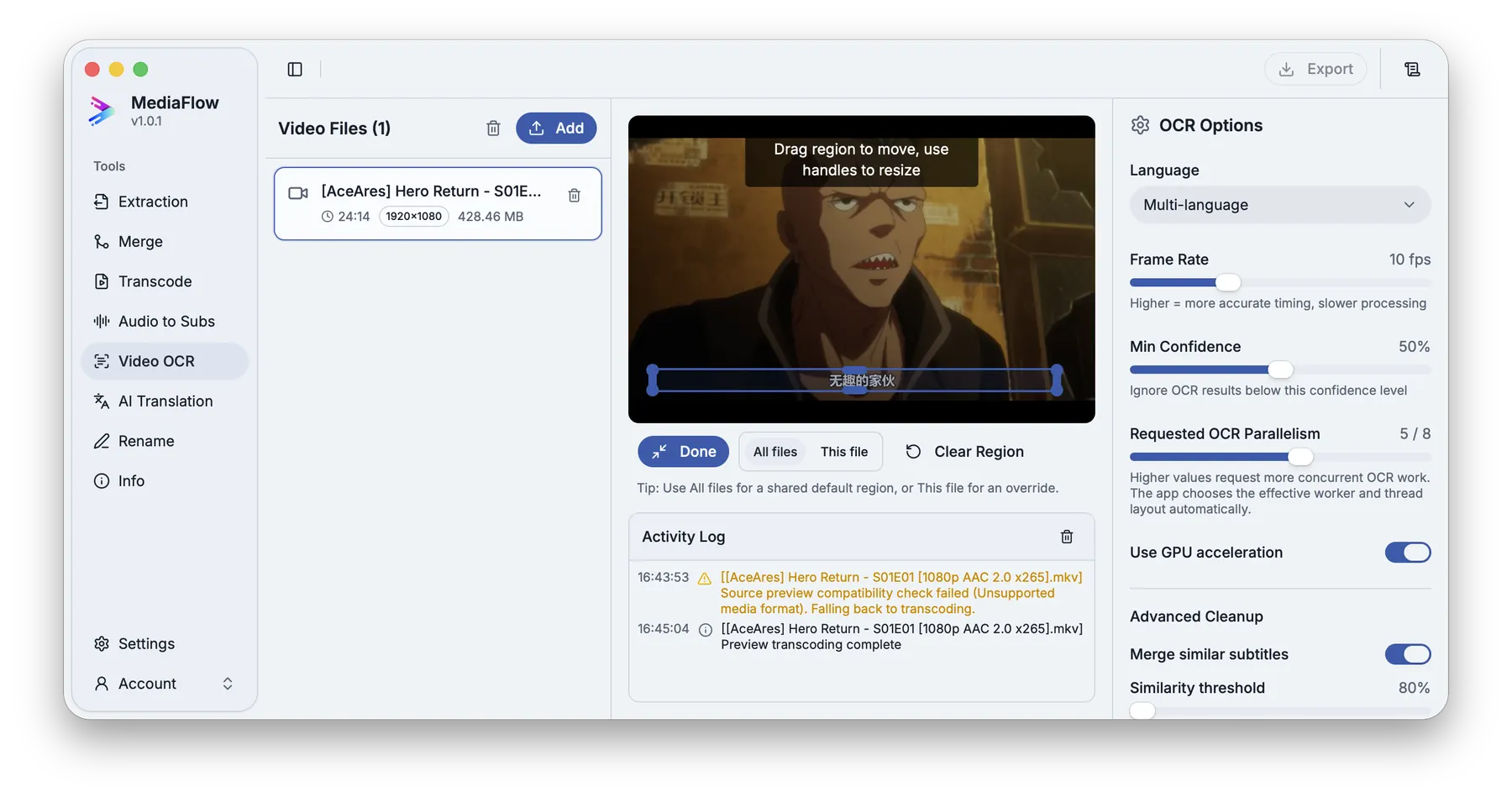
Recover burned-in subtitles
Select the text area in the frame, run OCR, review the result, and save a subtitle file.
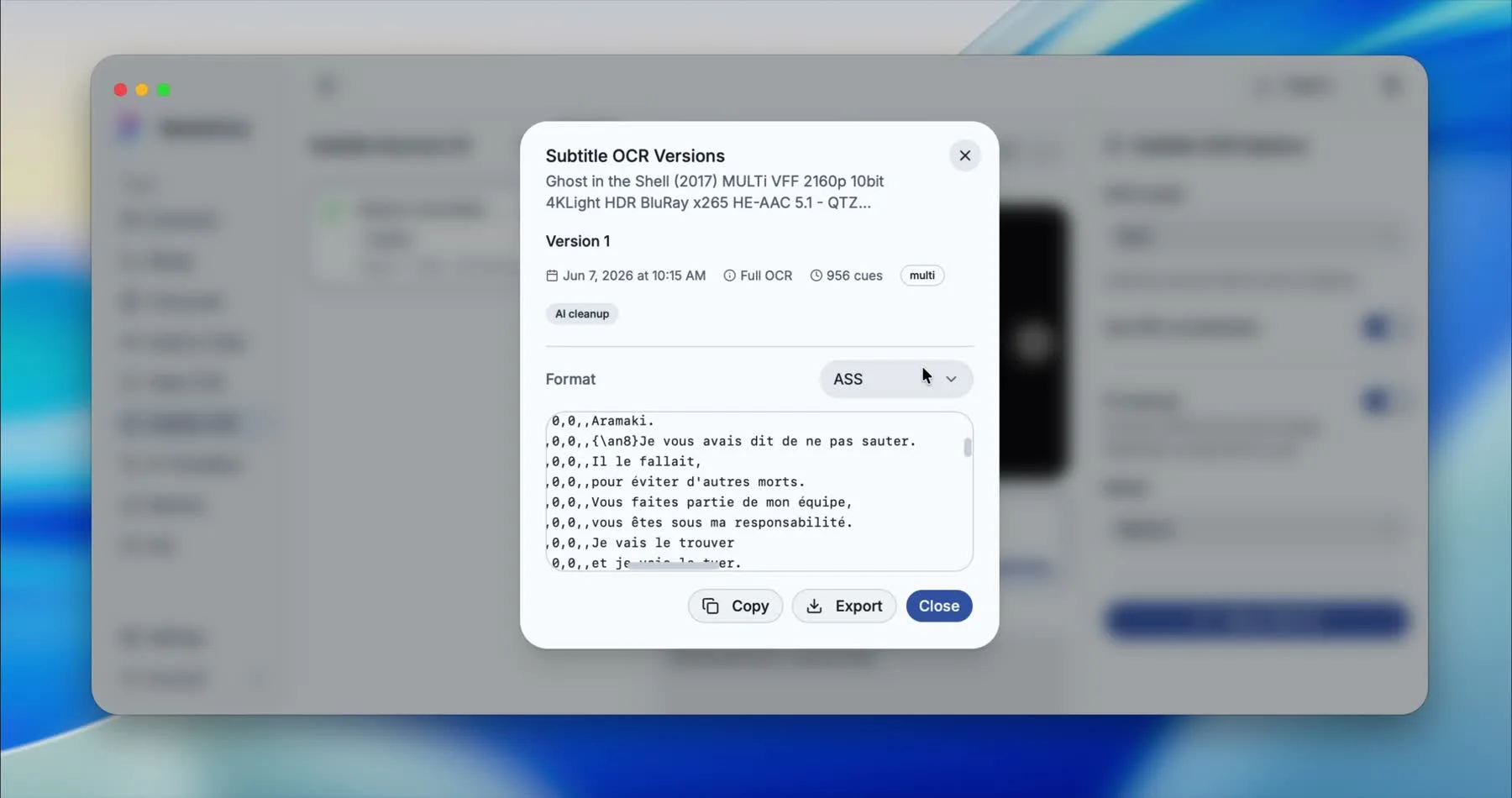
Review bitmap subtitle OCR
Compare each decoded subtitle image with recognized text, edit the cue, run AI cleanup when useful, and export the version you trust.
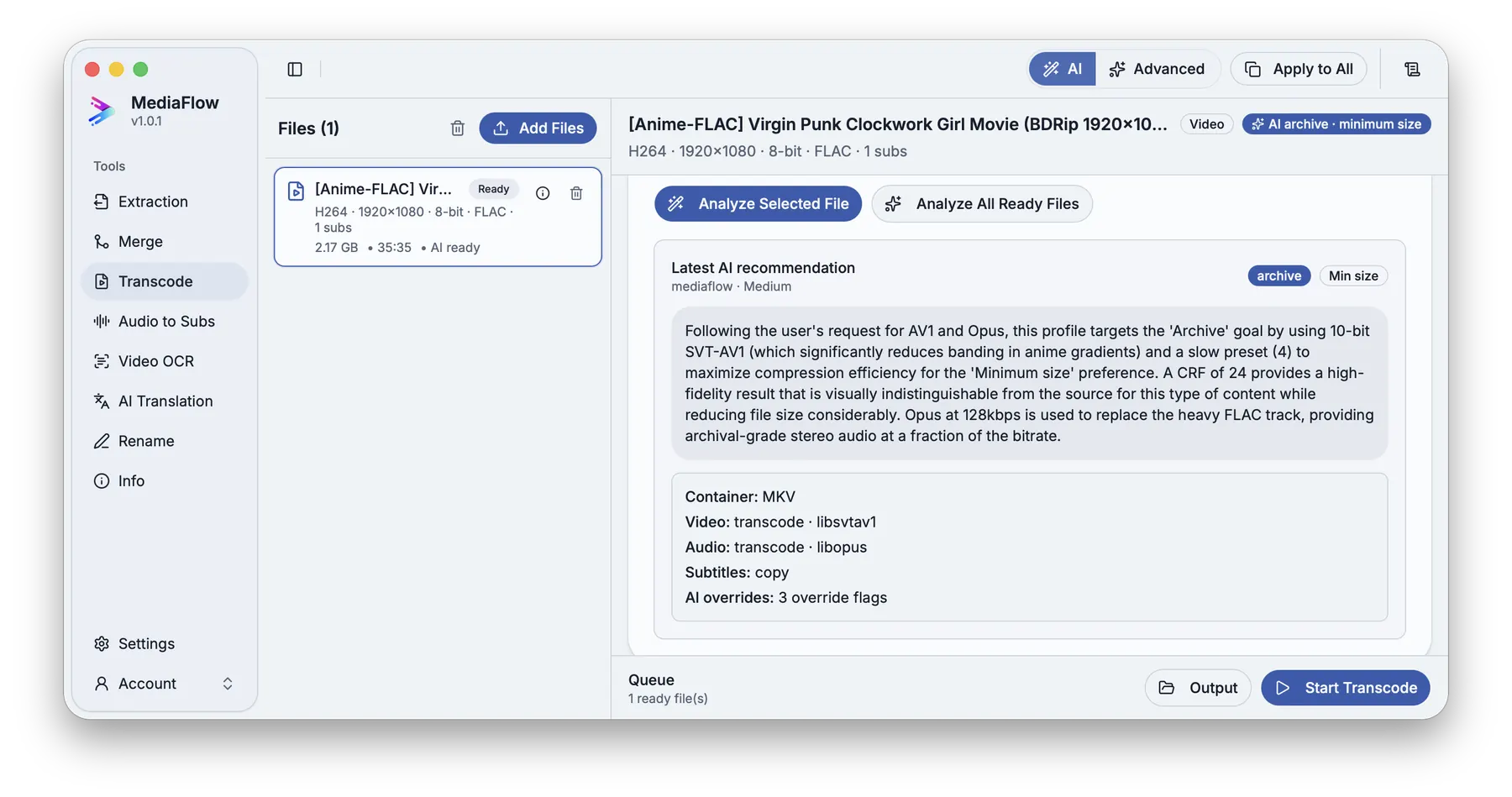
Convert without guesswork
Choose the container, destination, video, audio, subtitles, and metadata output before starting the queue.
Download
Download MediaFlow and stop collecting media utilities.
Install the macOS or Windows desktop app for your media workflow, then use credits only when AI saves time on matching, transcription, OCR cleanup, translation, or recommendations.
FAQ
Questions before downloading.
Clear answers about what MediaFlow replaces, what stays under your control, and when AI credits are used.
Because most media workflows usually force you into separate apps. MediaFlow puts the common jobs in one macOS and Windows desktop app: converting, extracting, subtitles, translation, video OCR, subtitle OCR, batch renaming, and file inspection.
Both. You can work on one file when you need precision, or load a full batch when you need the same operation across many episodes, clips, or exports.
Yes. The tools are built around previews: tracks, filenames, transcode settings, generated subtitles, translations, OCR text, and export versions can be checked before export.
It separates audio, subtitle, or video tracks from a media file so you can save and reuse only the pieces you need.
It lets you attach external subtitles or audio tracks to the right videos, review the order and labels, then export clean media files.
Transcode lets you convert videos and audio tracks for publishing, archiving, editing, or smaller file sizes while keeping control over the container, video, audio, subtitles, and metadata.
Credits are used only for assisted features such as matching tracks, recommending transcode settings, generating subtitles from speech, cleaning OCR text, reading burned-in text, and translating subtitles.
Yes. Canceling does not always mean zero cost. Some models or providers do not fully support cancellation, and if the LLM has already started generating a response, any provider cost can still be charged against your credits.
Yes. Generated subtitles and translations stay reviewable, editable, and versioned before you export the final file.
Yes. Video OCR reads text from a selected video area, while Subtitle OCR converts bitmap subtitle sources such as PGS, SUP, and IDX/SUB into editable subtitle files.
No. AI can suggest, transcribe, read, or translate, but you still review the result before exporting or writing files.